

How to Publish a Book on Amazon: Step-by-Step
How to publish a book on Amazon with KDP: the files you need, every setup screen, pricing, review time, and what you can do for free.
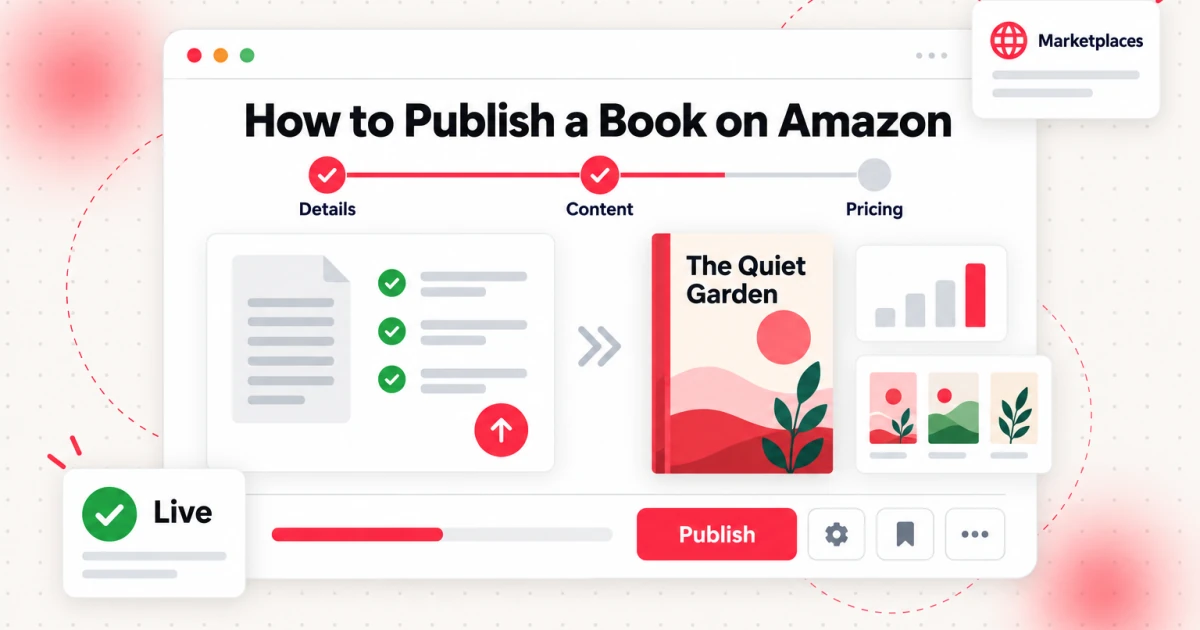
To publish a book on Amazon, you create a Kindle Direct Publishing (KDP) account, upload a finished manuscript and a cover, fill in the book details, set a price, and submit the title for review. KDP lets you publish ebooks, paperbacks and hardcovers for free and prints books on demand, with printing costs taken out of royalties rather than charged up front (KDP start publishing help). This guide shows how to publish a book on Amazon in the order the KDP screens appear, and what to prepare before each one.
If you want the wider picture first, read what Amazon KDP is and how it works. This article is the hands-on version: files, fields, formats, prices and timing. All KDP figures in this guide come from Amazon's KDP Help pages, checked in October 2026. Rules change, so each figure links to the page it came from.
What You Need Before You Publish a Book on Amazon
Gather these first, so nothing is missing when you sit down at the KDP form:
- A finished, proofread manuscript. If you are unsure how long the book is, run it through the word counter for a word and page estimate.
- A cover. An ebook needs one image. A paperback or hardcover needs one print cover file with back cover, spine and front cover together (Step 2).
- A title and subtitle. Together they must be fewer than 200 characters (KDP metadata guidelines).
- A description. The limit is 4,000 characters, and KDP counts HTML tags toward it (KDP description guidelines).
- Keywords and categories. You can enter up to seven keywords and choose up to three categories (KDP keyword guidance, KDP categories). Draft them now.
- A price in mind. Know which ebook royalty plan you want and what a paperback must cost to leave you a margin (Step 5).
- An ISBN decision for print. Ebooks do not need an ISBN. Print books do, and KDP can supply one (Step 4).
- Tax and payment details. KDP states that it must receive and validate your tax identity before you can publish new books or update existing ones (KDP tax information). Bank details are checked within five business days (KDP bank account help), so do this part early, not on launch day.
To start, sign in at kdp.amazon.com with an Amazon customer account, or create one, then complete the author, payment and tax sections.
One limit to know about: you can create and submit up to two new titles per format each week, and the count resets every Sunday at 12:00 AM UTC (KDP Create a Book).
Steps to Publish a Book on Amazon at a Glance
The steps to publish a book on Amazon fall into eight stages. KDP groups the title setup into three screens: Book Details, Content, and Pricing. The checklist adds the work around them.
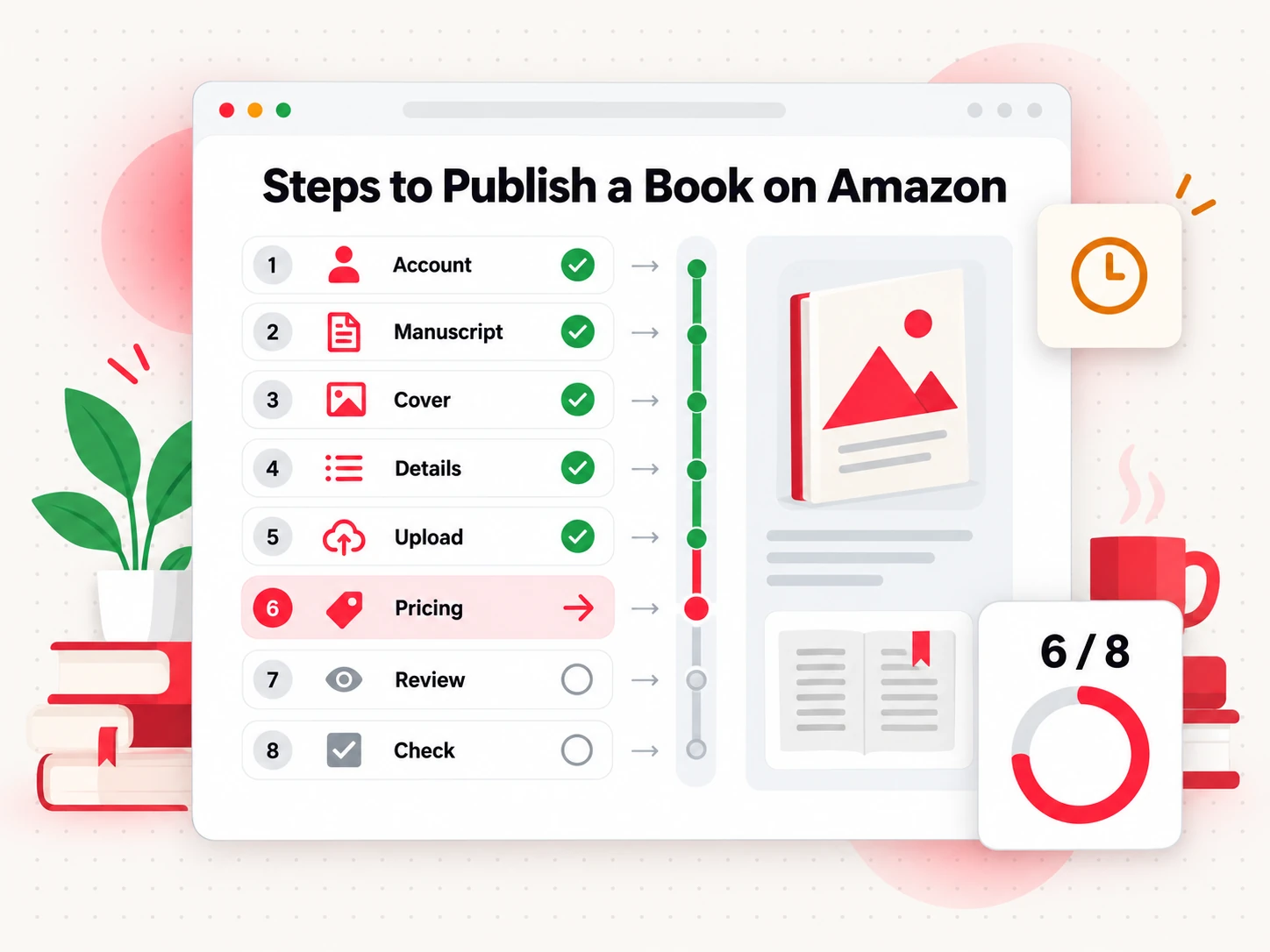
- Open your KDP account and finish author, payment and tax information.
- Prepare your manuscript files in a format KDP accepts.
- Make your cover to the right size for ebook, paperback or hardcover.
- Enter your book details: title, author, description, keywords, categories, AI disclosure.
- Upload your files and preview them page by page.
- Set rights, price and royalty plan.
- Submit for review.
- Check the live listing once the book goes live.
You do not have to finish every screen in one sitting. Save the title as a draft and come back. The sections below cover the work in five steps: Steps 1 and 2 are the files, Step 3 is the Book Details screen, Step 4 is Content, and Step 5 is Pricing. Submitting and the live check come after.
Step 1: Prepare Your Manuscript Files
KDP accepts different file types for ebooks and for print books.
For a Kindle ebook, KDP lists Microsoft Word (DOC or DOCX), Kindle Package Format (KPF) and EPUB as the main options. It also accepts HTML in a ZIP, RTF, plain text, and PDF for a short list of languages. KDP states that effective March 2025 it no longer accepts MOBI files for fixed-layout ebooks (KDP eBook manuscript formats). For a mostly-text book, EPUB files for Kindle or DOCX are the simplest route.
For a paperback, the rules depend on bleed (images or color that run to the page edge). A book with bleed must be uploaded as a PDF. Without bleed, you can upload PDF, DOC, DOCX, RTF, HTML or TXT, and KDP converts it. Also from the KDP paperback submission guidelines:
- Embed all fonts and images before you submit.
- Keep the file at or under 650MB, with images of at least 300 DPI.
- The minimum is 24 pages, and KDP rounds up to an even number. The maximum depends on trim size and paper, from 590 to 828 pages.
A hardcover runs 75 to 550 pages, in five trim sizes (KDP hardcover help).
Margins are where print files most often fail. The minimum inside (gutter) margin depends on page count: 0.375 inches for 24 to 150 pages, 0.5 for 151 to 300, 0.625 for 301 to 500, 0.75 for 501 to 700, and 0.875 for 701 to 828. Outside margins are at least 0.25 inches without bleed and 0.375 with bleed (KDP trim size, bleed and margins).
If you write the book in Bookeen, the Bookeen AI online book creator exports what this step needs: an EPUB 3 file that passes epubcheck with zero errors, and a print-ready PDF for the interior, 6×9 inches by default. That default is a starting point, not a KDP certification, so upload it and go through the Previewer like any other file. You upload the files to KDP yourself.
Step 2: Create a Cover That Meets KDP Specs
An ebook cover and a print cover are different files.
The ebook cover is one image of the front. KDP recommends 2,560 pixels high by 1,600 wide, with a height-to-width ratio of at least 1.6 to 1. The minimum is 1,000 high by 625 wide, and neither side may exceed 10,000 pixels. Use JPEG or TIFF in RGB at 300 PPI or higher (KDP cover image guidelines).
The print cover is one PDF holding the back cover, spine and front cover as a single flat image, with 0.125 inches of bleed on the top, bottom and outside edges, images of at least 300 DPI, embedded fonts and flattened transparency (KDP paperback cover requirements). Spine width depends on page count and paper: page count times 0.002252 inches (0.0572 mm) for white paper, or 0.0025 inches for cream (KDP trim size, bleed and margins). KDP prints spine text only on books above 79 pages.
Bookeen produces both: an ebook cover at 1600×2560 pixels by default, and a print cover that joins back cover, spine and front cover with 1/8 inch bleed at 300 DPI. Its spine width uses 0.0572 mm per page, which matches KDP's white-paper figure. If you choose cream paper, check the width against KDP's cover calculator before you upload. A full walkthrough of the KDP cover template has its own guide.
Step 3: Enter Your Book Details
This is the first KDP screen, Book Details. KDP calls this information metadata, because it describes what shows on your Amazon detail page. Several fields lock once the book is live, so fill each one with care.
The title field should contain only the actual title of your book as it appears on your book cover.
- Language. The language the book is written in. It cannot be changed after publishing.
- Title and subtitle. Together under 200 characters. Title, author name and ISBN in your manuscript must match what you enter here.
- Series. Optional. Public domain and low-content books are not eligible.
- Author and contributors. Credit editors, illustrators or translators if you want them listed. A translation must credit the translator and the original author.
- Description. Up to 4,000 characters including HTML tags. Basic formatting works: bold, italics, underline, line breaks, paragraphs, h4 to h6 headings and lists. Reviews, quotes, requests for reviews, prices, contact information and emoji are not allowed.
- Publishing rights. Confirm that you own the copyright or hold the rights to publish.
- Keywords. Seven boxes. KDP recommends phrases of two to three words and bars other authors' names and references to sales rank (KDP metadata guidelines). Follow the live counter for length. A dedicated guide covers choosing your seven KDP keywords.
- Categories. Up to three, based on where your readers will look.
- Reading age. Optional, but leaving it out can keep a book out of children's categories.
- Adult content. KDP asks whether the book contains sexually explicit images or title. You must answer yes or no.
- AI-generated content. KDP asks you to disclose AI-generated content when you publish a new book or republish an edited one. That covers text, images and translations created by AI tools, even if you edit them heavily afterward. AI-assisted work, where you wrote the book and used AI to edit, polish, check for errors or brainstorm, does not need disclosure (KDP content guidelines). Amazon's AI content disclosure rules have their own guide.
Step 4: Upload Your Manuscript and Preview It
This is the Content screen. Choose the format and upload your files.
For an ebook, upload the manuscript and cover, and pick your Digital Rights Management (DRM) setting. DRM limits copying of the ebook file, and you can change it after publishing.
For a paperback or hardcover, you answer several print questions first:
- ISBN. KDP can assign a free ISBN, or you can use your own. A free KDP ISBN works only on KDP, and the imprint shows as "Independently published" (KDP free ISBN help). Low-content books cannot use it.
- Ink and paper. Black ink on white or cream paper, standard color or premium color. This drives your printing cost.
- Trim size. Pick the page size now. It cannot be changed after publishing.
- Bleed. Choose "bleed" if any image or color runs to the page edge.
- Cover finish. KDP offers a choice of cover finishes for print books.
After uploading, always use the previewer. The Online Previewer shows an ebook on tablets, phones and e-readers. The Print Previewer shows each print page. Both flag spelling issues, low-quality images that will look blurry, and a mismatch between the language you selected and the language of the manuscript (KDP upload and preview help). Go page by page, not just front and back. Check that headings do not strand at the bottom of a page, images are sharp, and the ebook's table of contents links work.
Step 5: Set Rights, Pricing and Royalties
The last screen is Pricing. It sets where the book sells, what it costs, and what you earn.
Territories. Choose worldwide rights only if you hold all the rights needed to sell worldwide. Otherwise pick individual territories (KDP distribution rights). For print, amazon.com.br, amazon.com.in and amazon.com.mx do not support paperback and hardcover distribution (KDP print distribution rights).
Ebook royalty. You choose 35% or 70%. The 70% plan applies when the amazon.com list price is between $2.99 and $12.99 and the ebook is priced at least 20% below any physical edition. It also deducts a delivery cost of $0.15 per megabyte on amazon.com. The 35% plan allows $0.99 to $200.00 and has no delivery fee. The formula is the rate times (list price minus applicable VAT minus delivery cost) (KDP ebook pricing, KDP royalty page). For a made-up $4.99 ebook of 2 MB on the 70% plan, that is 0.70 × ($4.99 − $0.30), about $3.28 per copy before any VAT. A separate guide covers the KDP royalty calculator.
Print royalty. Amazon's rate is 50% for list prices up to $9.98 and 60% from $9.99 on amazon.com. The royalty is the rate times your list price, minus printing cost (KDP print royalty help). For black ink, printing cost is $2.30 flat for 24 to 110 pages and $1.00 plus $0.012 per page for 110 to 828 pages (standard trims, amazon.com, KDP printing cost). Take a made-up 200-page 6×9 book at $14.99: printing costs $1.00 + 200 × $0.012 = $3.40. The 60% rate gives $8.99, so you keep about $5.59 per copy.
Expanded Distribution. For paperbacks, you can opt into bookstores, online retailers, libraries and academic institutions. The royalty there is 40% of the list price minus printing costs. Hardcover is not eligible.
KDP Select. For ebooks, this is an optional 90-day program that requires the ebook to be exclusive to Kindle while you are enrolled. A separate guide covers the trade-offs. You can publish without it.
When you get paid. Royalties are paid monthly, about 60 days after the end of the month in which the sale was reported (KDP payment timing).
Before you submit, go back through all three screens once more. Title, author name and cover must agree with each other.
How to Self-Publish a Book on Amazon in Print
How to self-publish a book on Amazon in print follows the same eight steps, with extra decisions about paper, trim size and proof copies.
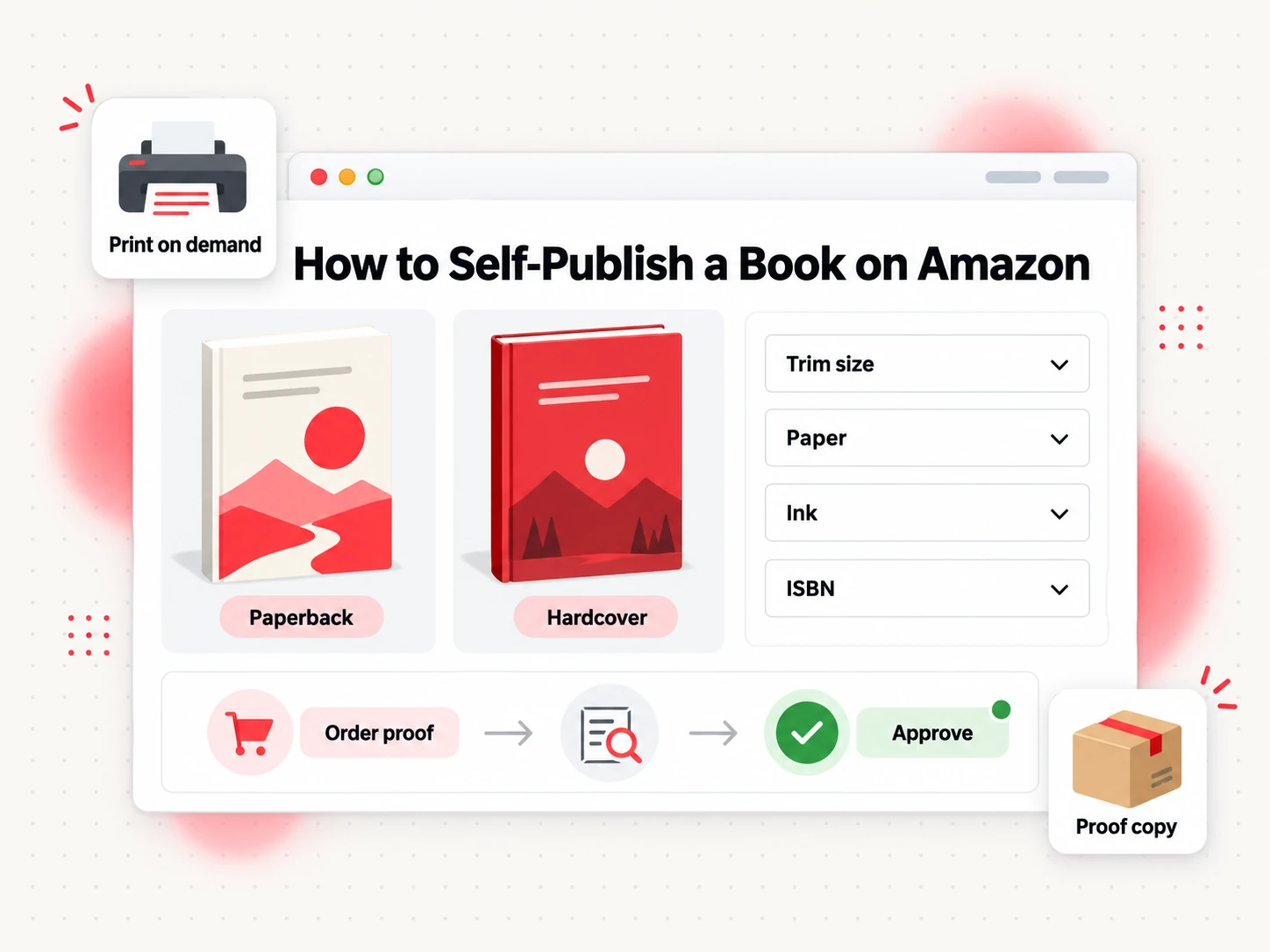
Paperback or hardcover. Paperback is the usual first book. Hardcover has its own page range of 75 to 550 pages and is not eligible for Expanded Distribution, but it gives you a second print edition. Both are print on demand: KDP prints a copy when someone orders it, so you hold no inventory.
Order a proof copy. A proof is a physical copy you order to check the real book before readers do. Proofs carry a "Not for Resale" watermark and a barcode with no ISBN, earn no royalties and cannot be sold. You can order them while the book is in Draft, once you have approved it in the Print Previewer. Open the menu next to the title on your Bookshelf, choose "Request Printed Proofs," and enter up to five copies. KDP emails a link within four hours to finish the order, and you must pay within 24 hours or the copies leave your cart (KDP proof copies). You pay printing cost plus shipping, and proofs do not get free or Prime shipping. When the copy arrives, check cover colors, the spine, the inside margin and page breaks. If something is wrong, fix the files and preview again.
Author copies. Once the book is live, you can order copies at print cost. You can give them away or resell them, but they earn no royalty.
Link the ebook and the print book. If both editions share the same title, subtitle, author, contributors, series, language, edition and interior type, the detail pages should link automatically a week after each edition is live. Both must be published under the same KDP account, and different languages cannot be linked (KDP linking help). A one-character difference in the title can stop the link, so copy the same metadata into each edition.
Know what is locked. After publishing, language, edition number, print publication date and trim size cannot change. Title, subtitle and primary author are locked too, except for a 72-hour window after the first print publication. You can still change the description, keywords, categories, territories, price, reading age, contributors and ebook DRM (KDP update book details).
How to Publish a Book on Amazon for Free
You can publish a book on Amazon for free: KDP charges no fee to upload, list or publish it, and print costs come out of each sale (KDP start publishing help).
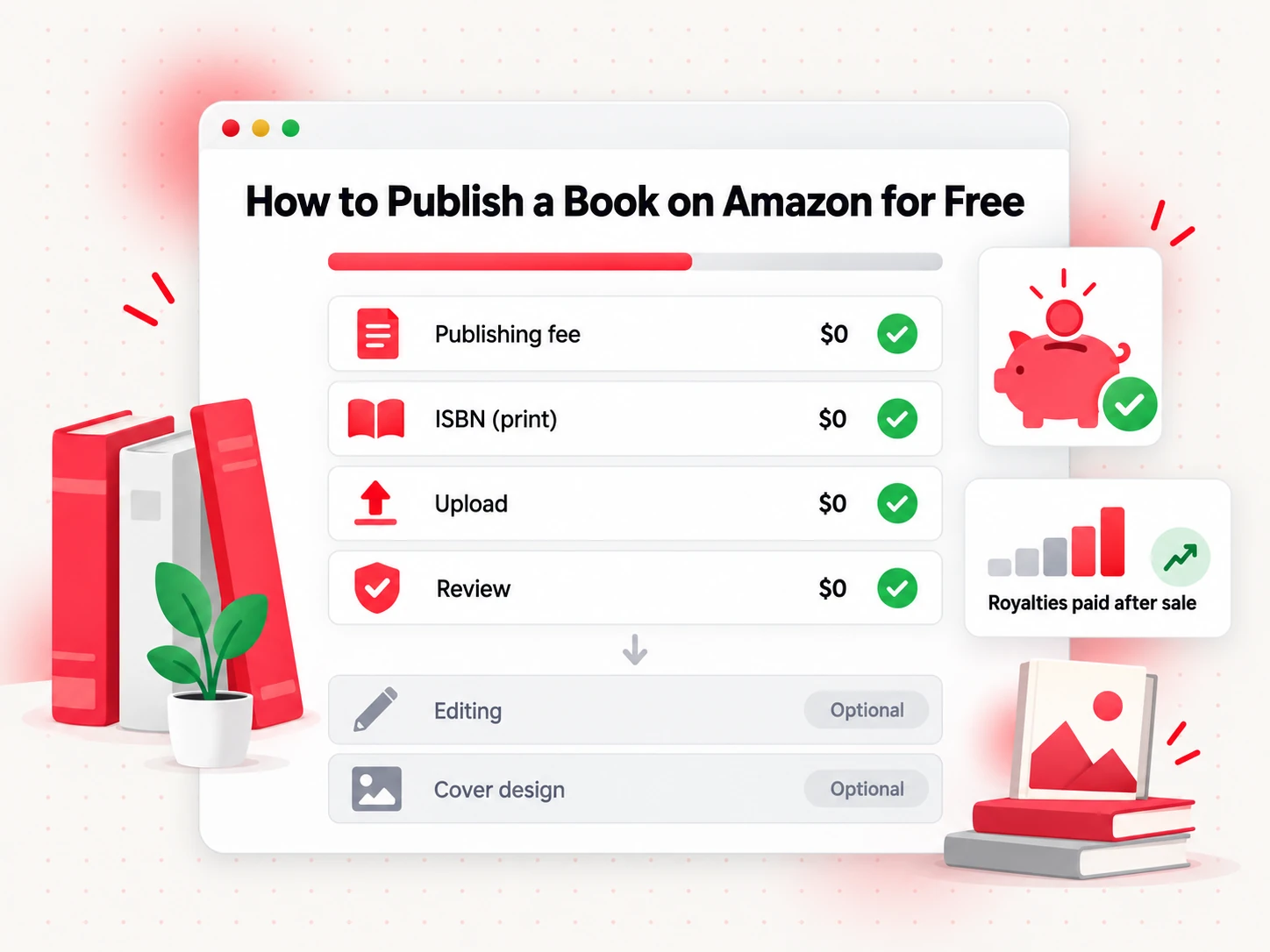
What costs nothing up front:
- Account setup and uploading files.
- An ISBN for print. KDP's free ISBN covers paperback and hardcover, with the limits in Step 4.
- Ebook delivery on the 35% plan. The 70% plan deducts delivery costs from your royalty, which comes out of sales, not an upfront fee.
- Print on demand. Printing cost is taken from each print sale.
What you may choose to pay for:
- Editing and proofreading. Optional, but a clean manuscript matters more than almost anything else.
- Cover design. Make your own, use KDP's cover tools, or hire a designer.
- Proof copies. Printing cost plus shipping per copy.
- Your own ISBN. Needed only if you want your own imprint or plan to sell the print book beyond KDP.
- Formatting software or services.
A working free route: write and proofread the manuscript yourself, export an EPUB and a print PDF, make the covers, take the free KDP ISBN for print, preview in KDP's previewers, and publish. For a line-by-line breakdown, see what it really costs to publish a book, which has its own guide.
Bookeen can be the place where the manuscript and export files come from. New accounts include 30 credits to generate and preview a full book online, and downloading the export files needs a paid plan.
How Long Does It Take to Publish a Book on Amazon
How long it takes to publish a book on Amazon depends on how quickly you finish setup and how long KDP takes to review and list the book. Plan on a few days between clicking publish and a live listing, and longer for print because of proof copies.
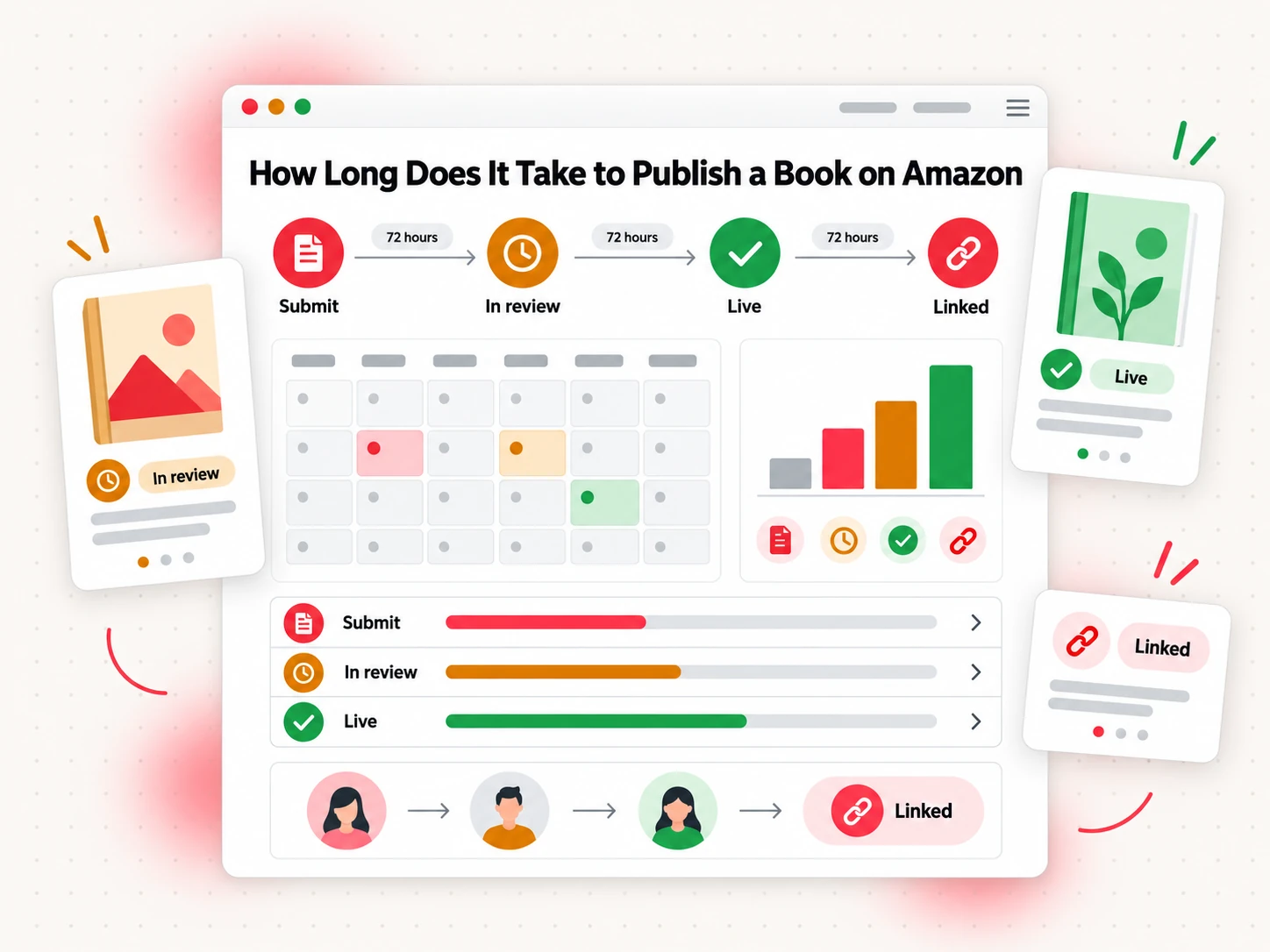
KDP's timelines say that after you submit a book or an update, it should be Live on Amazon within 3 business days. Low-content books such as journals and notebooks can take up to 10 business days. After that, the detail page can take up to 72 hours to appear for an ebook. For a paperback or hardcover, it can take up to 72 hours on amazon.com and up to 5 days on other Amazon sites. Updates to a published book can also take up to 72 hours (KDP timelines).
| Stage | What happens | What KDP says |
|---|---|---|
| Submit | You submit after all three screens are complete | Live within 3 business days; up to 10 for low-content books |
| In review | Amazon checks the book against its content guidelines | Part of the 3-business-day window |
| Live | The book is on sale | Detail page up to 72 hours (ebook, or print on amazon.com); up to 5 days (print on other sites) |
| Linked | Ebook and print detail pages merge | About a week after each edition is live, when metadata matches |
Sources: KDP timelines and KDP linking help.
For a first book, a realistic schedule is: finish account, tax and bank setup a day or two ahead; upload, preview, price and submit on day 1; expect the live listing around days 2 to 4; and add proof copy time for print, since proofs ship by regular delivery. These timelines cover review and the detail page. Do not treat them as a promise about where the book appears in search results.
After You Hit Publish
Spend the first day checking the listing:
- Open the detail page and read the title, subtitle, author name, description and cover as a customer would.
- Try the sample and look for formatting errors.
- Check the price and territories on the marketplaces you care about.
- Confirm the editions link once the week has passed. If they do not, compare the metadata fields listed above.
- Set up your author page in Author Central.
- Order an author copy if you want a final check on the finished print book.
After that, the job changes from publishing to selling. A guide to how to sell books on Amazon after launch is coming.
How to Publish a Book on Amazon: FAQs
What does it mean to publish a book on Amazon?
To publish a book on Amazon means making it available for sale on Amazon's stores through Kindle Direct Publishing, a self-service program. You upload a manuscript and cover, enter the book details, and set a price. Amazon then sells the ebook, or prints each paperback or hardcover when a customer orders it, and pays you a royalty on each sale.
Is it free to publish a book on Amazon?
Yes, in the sense that KDP charges no fee to publish and the print ISBN is free. The costs are the ones you choose, such as editing, cover design and proof copies, plus printing and ebook delivery costs that Amazon deducts from sales.
Do I need an ISBN to publish on Amazon?
Not for an ebook. For paperback and hardcover, KDP can assign a free ISBN, which works only on KDP and shows "Independently published" as the imprint. If you want your own imprint or plan to sell the print book outside KDP, you buy your own. A dedicated guide covers how to get an ISBN.
Can I publish a book on Amazon without an agent or a publisher?
Yes. KDP is self-service, so you need no agent, publisher or anyone's approval beyond Amazon's content review. You must hold the rights for every territory where you choose to sell.
How long does it take for my book to appear on Amazon after I publish it?
KDP says a submitted book should be Live within 3 business days, or up to 10 business days for low-content books. The detail page can then take up to 72 hours for an ebook or for print on amazon.com, and up to 5 days for print on other Amazon sites.
Can I publish both an ebook and a paperback of the same book?
Yes. Publish each format as its own edition under the same KDP account. If the metadata matches, the detail pages should link about a week after each edition is live.
Can I change my book after it's published on Amazon?
Partly. You can still change the description, keywords, categories, territories, price, reading age, contributors and ebook DRM. Language, edition number, print publication date and trim size are locked.
Do I have to disclose AI use when I publish on Amazon?
Sometimes. KDP asks you to disclose AI-generated content, meaning text, images or translations created by AI tools, even if you edited them afterward. AI-assisted work, where you created the content and used AI to edit or brainstorm, does not need disclosure. KDP's wording is on its content guidelines page, and a separate guide goes through Amazon's AI content disclosure rules.
Write the Book, Then Publish It
Publishing on Amazon is a short list of screens once the files exist, and the files are the part that takes work. If you have a book idea and want the manuscript, EPUB, print PDF and covers in one place, start your book with Bookeen, then take the exported files through the KDP steps above.